
The Thunderbird email client is a popular open source desktop program that is used by millions for sending, receiving and managing emails. The program supports a number of keyboard shortcuts that are mapped to specific functionality. While it is possible to use Thunderbird using the mouse exclusively, keyboard shortcuts may speed up certain operations.
This guide lists the most useful shortcuts for the Thunderbird email client; most useful in regards to improving productivity by speeding up workflows. Thunderbird displays some of the supported keyboard shortcuts when you open menus.
Thunderbird keyboard shortcuts
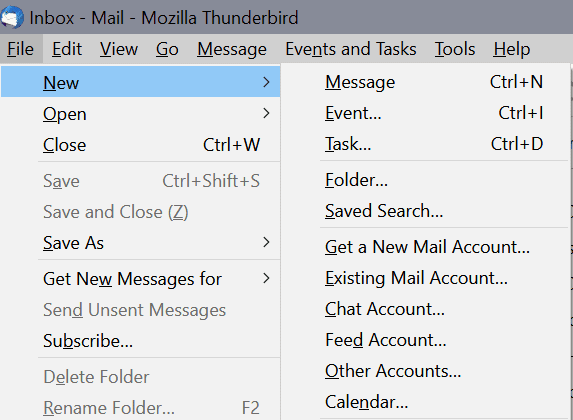
Modifier keys are the Ctrl-key on Windows and Linux, and the Cmd-key on Mac OS devices. This guide uses Ctrl, and Mac users need to replace it with Cmd whenever it is used to make the shortcut work on their devices.
- Create a new message -- Ctrl-N
- To write a new, blank, message, use the shortcut Ctrl-N. The shortcut Ctrl-M is also mapped to creating a new message.
- Forward a message -- Ctrl-L
- You can forward the selected message by using the keyboard shortcut Ctrl-L; this works with multiple messages as well.
- Add labels to messages -- [0..5]
- Use the shortcuts 0, 1, 2, 3, 4 or 5 to add labels. These set the label to None, Important, Work, Personal, ToDo, and Later respectively.
- Mark as Junk -- Ctrl-J
- The shortcut Ctrl-J marks the selected message or messages as junk. Use Shift-J to mark the selection as "not junk".
- Go to next unread message -- N
- Open the next unread message in the mail folder by tapping on the N-key. Thunderbird suggests to switch to the All Mail folder if there are no unread messages anymore in the folder. To go to the next message instead, use F, and to the previous B.
- Send the message -- Ctrl-Enter
- Use the keyboard shortcut Ctrl-Enter to send the selected message immediately. You may also use Ctrl-Shift-Enter to send it later.
- Reply to message -- Ctrl-R
- To reply to the selected message, use Ctrl-R. If you want to reply to all recipients, use Ctrl-Shift-R instead.
- Get new messages -- Ctrl-T
- Retrieves new messages for the active account. If you want to retrieve new messages for all accounts, use Ctrl-T instead.
- Send and receive all messages -- Ctrl-F5
- The shortcut checks all mail servers for new messages to retrieve them, and sends all messages that have not been sent already.
- Display the message source -- Ctrl-U
- If you need to analyze a message, viewing the source is most helpful. Use Ctrl-U to display it.
Closing Words
Keyboard shortcuts may speed up certain operations significantly. You can check out the entire list of supported keyboard shortcuts on the Thunderbird support website.
Thank you for being a Ghacks reader. The post The most useful Thunderbird shortcuts appeared first on gHacks Technology News.
https://ift.tt/39YmMn9
from gHacks Technology News https://ift.tt/36RJjjr

No comments:
Post a Comment