
Tab-to-Search is a feature of the Firefox web browser; it aims to improve searches using non-default search engines in the web browser's address bar. All it takes is to enter the root name of a search engine that is integrated in Firefox, e.g. google or bing, and hit the Tab-key to run a search using that search engine.
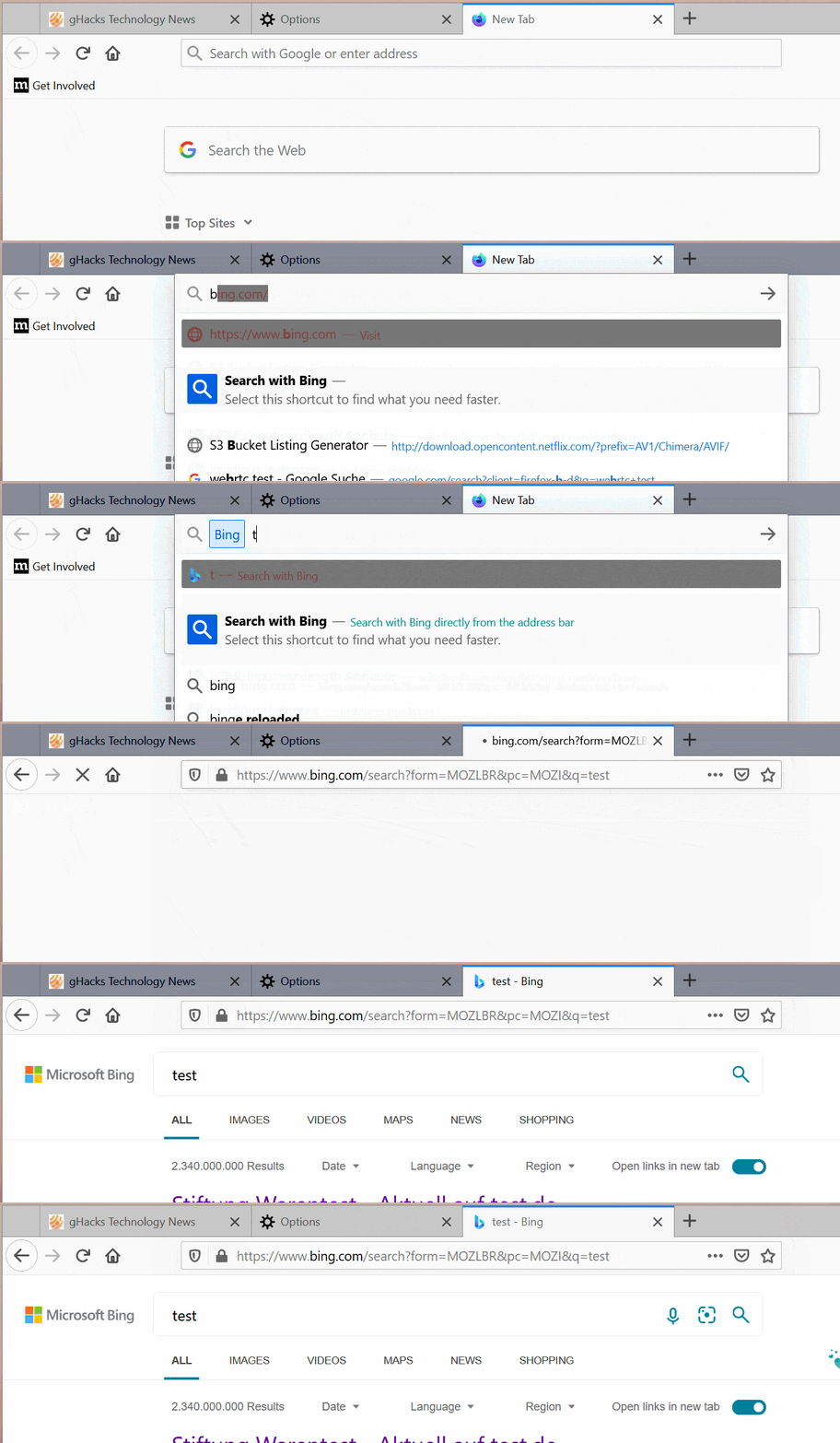
Firefox highlights the selected search engine in the address bar. All you need to do is type the search term and hit the Enter-key to run the search using that search engine. Tab-to-Search is a one-time operation, the default search engine will be used again afterwards.
Tab-to-Search works just like keyword searches, and the only difference is the visual distinguisher in the address bar when using the Tab-to-Search feature.
Tip: you may also use the keywords to run searches using non-default search engines in Firefox. Type @bing to run a search using that search engine. You may change keywords for each search engine in the Firefox preferences. Just load about:preferences#search, double-click in the keyword field and type a different keyword to start using it right away.
From Firefox 85 on, Firefox users may disable Tab-to-Search functionality for individual search engines or entirely. Why would someone want to disable the feature, and not just ignore it? If you look back at previous versions of Firefox and the Tab-key use in the address bar, you will notice that Tab was used to jump to the next item in the list of suggestions. Firefox users who prefer this, may disable tab to search functionality to always get this behavior even when they type the name of a search engine.
Remove Tab-to-Search individually
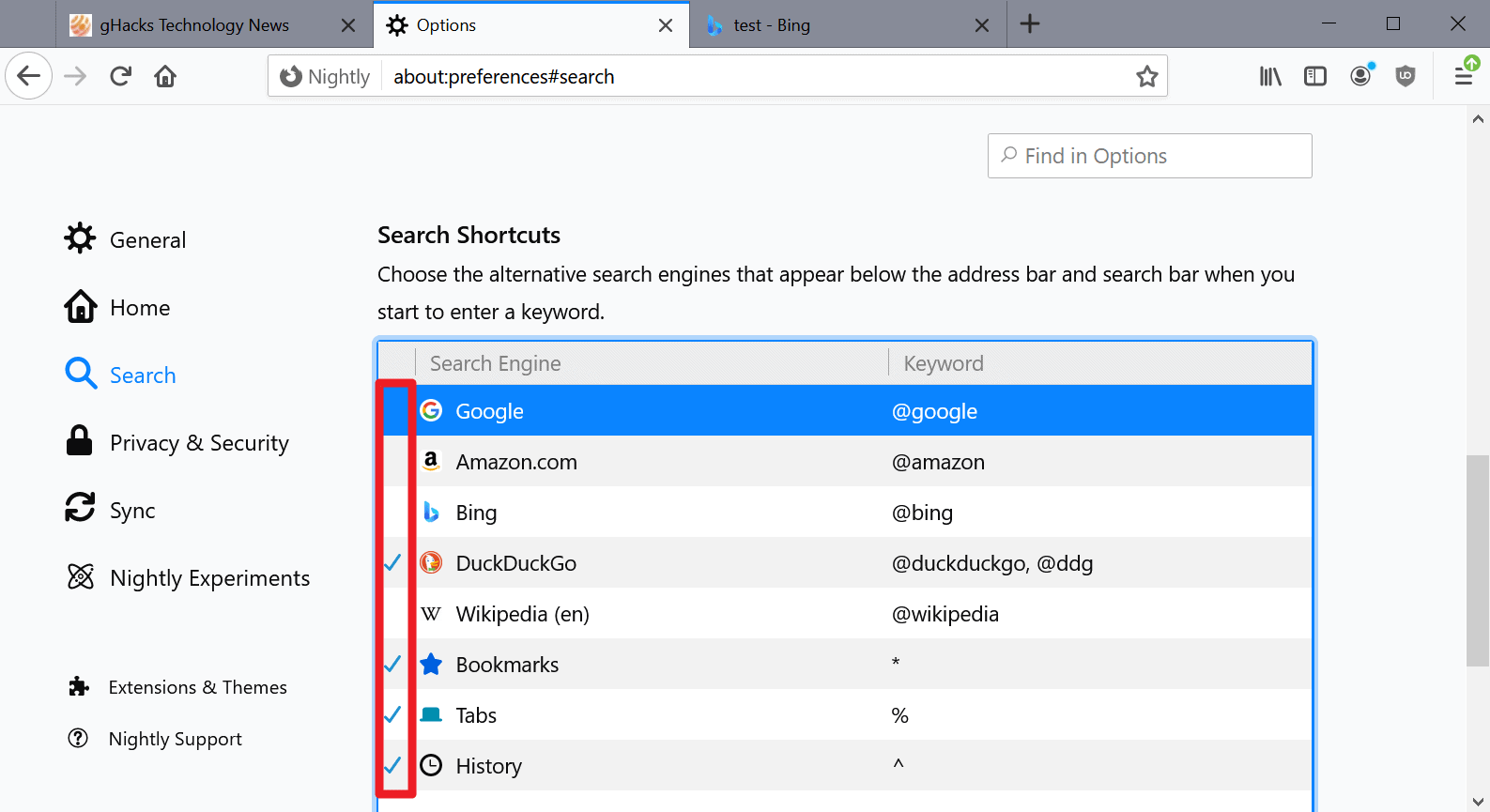
Do the following to disable Tab-to-Search functionality from individual search engines_
- Load about:preferences#search in the Firefox address bar.
- Scroll down to the Search Shortcuts section.
- Remove the checkmark that is displayed in front of search engines to disable the functionality for that search engine.
Note: removing the checkmark will also remove the search shortcut button in Firefox's address bar. Keyword searches continue to work as before.
Disable Tab-to-Search entirely in Firefox
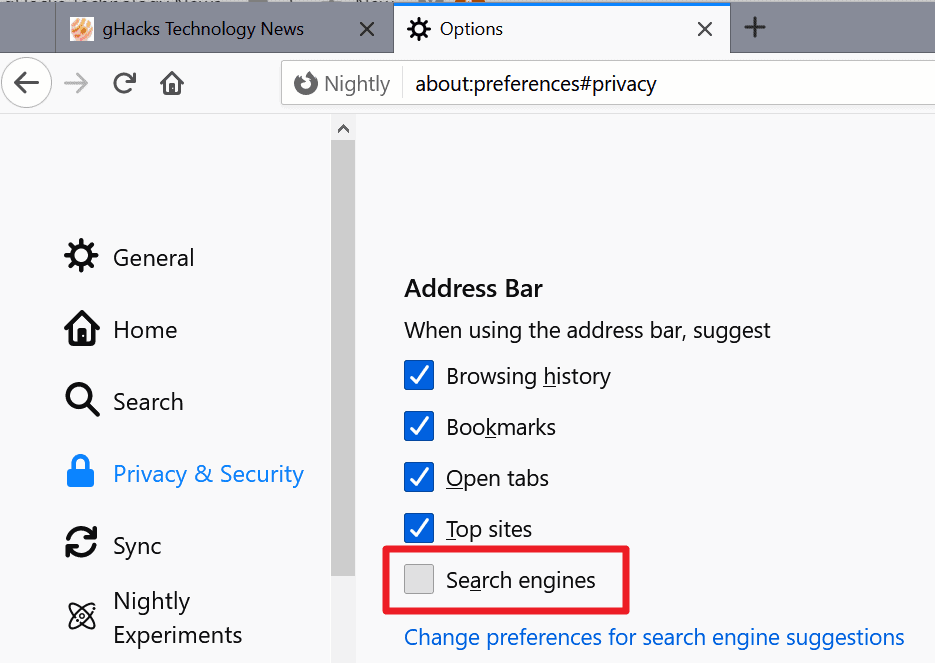
If you don't need Tab-to-Search at all, then you may disable it entirely. Here is how that is done:
- Load about:preferences#privacy in the Firefox address bar.
- Scroll down to the Address Bar section on the page.
- Uncheck the "Search Engines" listing.
Both options will be available in Firefox 85 Stable. The new Firefox version is scheduled for a January 26, 2021 release.
Now You: how do you search in Firefox?
Thank you for being a Ghacks reader. The post Don't like Tab-to-Search in Firefox? You can disable in Firefox 85 appeared first on gHacks Technology News.
https://ift.tt/2LSuo10
from gHacks Technology News https://ift.tt/34rFwsc

No comments:
Post a Comment